
The LENA dock automatically connects to the cellular via a built-in cellular modem. In some cases the cell connection is unavailable or too slow. When that happens, the dock's network light will blink yellow and device data may not process. When this happens, the dock needs to use the school's local Wi-Fi instead.
To establish a Wi-Fi connection, you will need:
-
Apple or Android phone or tablet with Wi-Fi enabled
- Exact network name and password for the school's Wi-Fi network
- LENA Wi-Fi Connect app
READ THIS BEFORE CONTINUING: If your dock light is RED, skip these steps and contact LENA directly using this form.
Follow the steps below to connect your dock to Wi-Fi.
You can also access instructions via the QR code that came with the dock. It leads here: https://www.lena.org/teacher-support/-
Install the LENA Wi-Fi Connect app on any compatible Apple or Android device (phone or tablet).
-
Open the app and follow pairing instructions in the app (see below for screen shots of this process if you are supporting dock connection remotely).
- Solid green light means success.
Wi-Fi Connecter App Screen-by-Screen Guide
 |
 |
 |
|
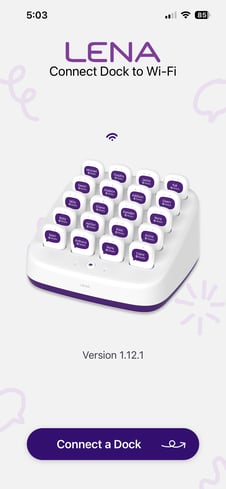
1. Launch the app. You will connect one dock at a time. |
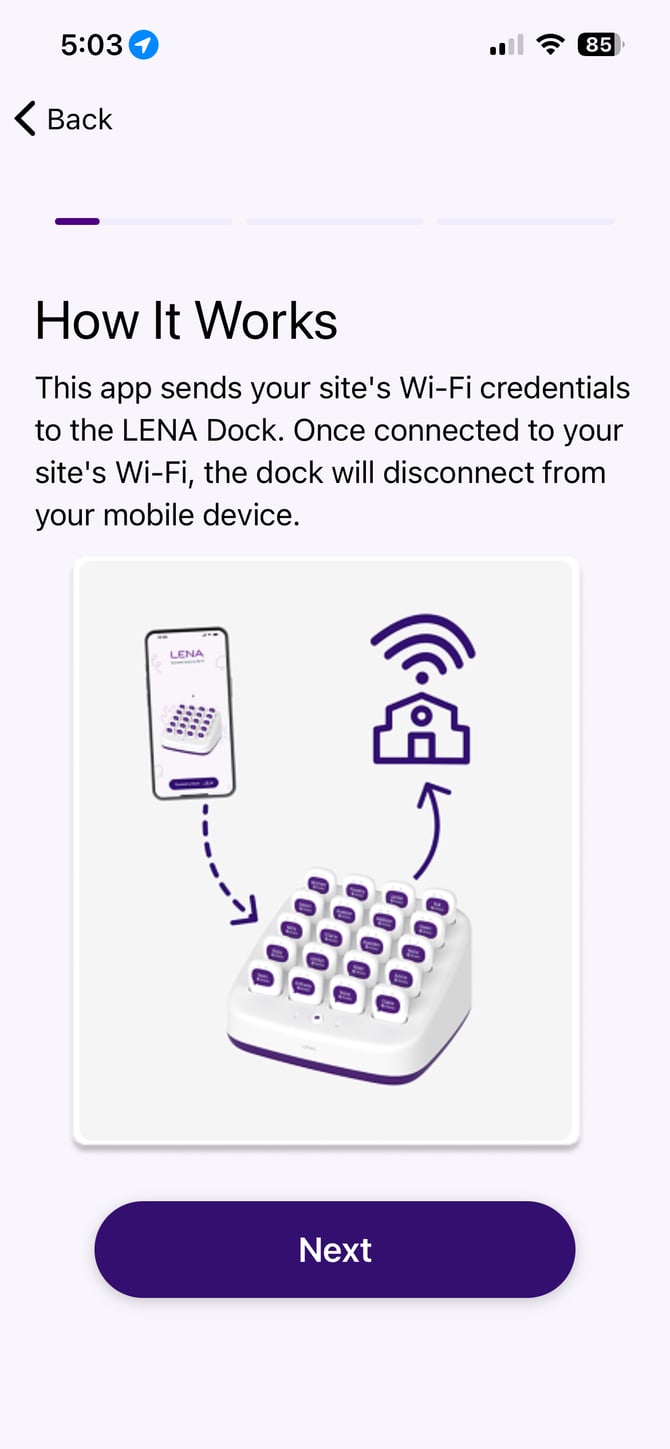
2. Understand how it works. This app sends your site's WI-Fi credentials to the LENA dock. Once connected to your site's Wi-Fi, the dock will disconnect from your mobile device. |
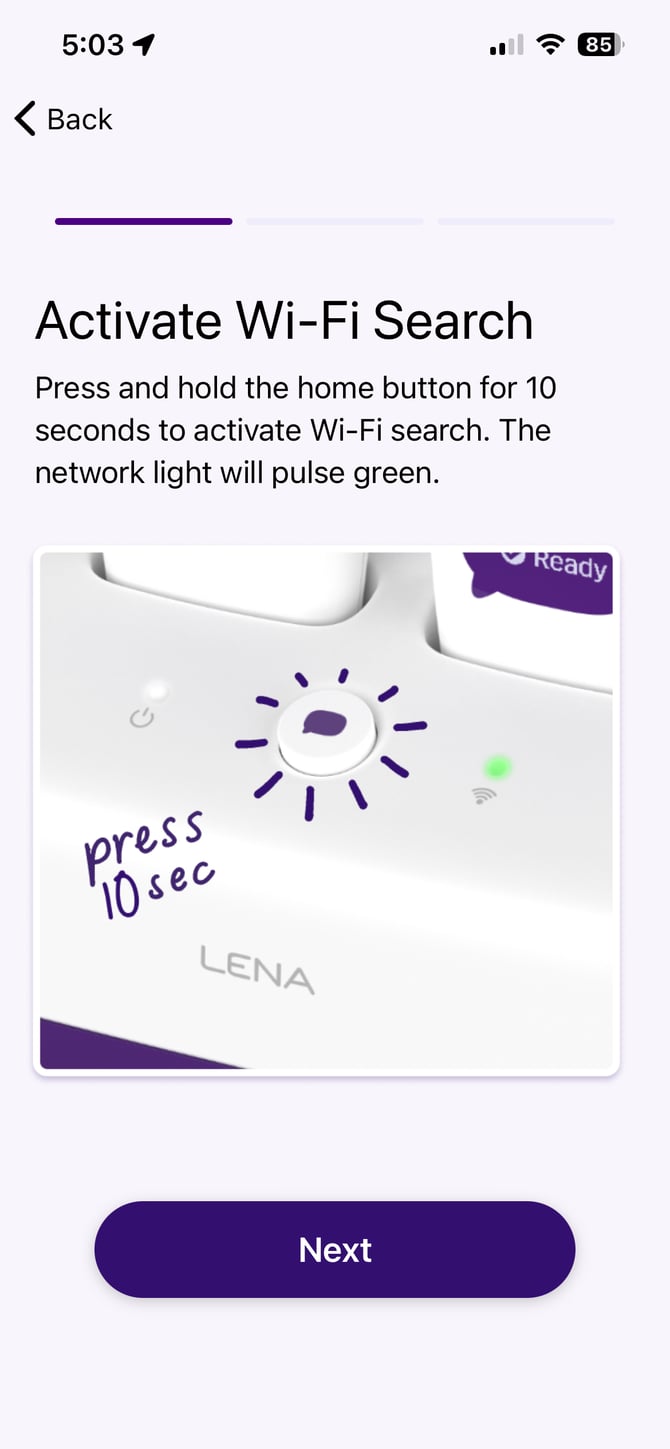
3. Activate Wi-Fi search on the dock. You are essentially putting the dock in "pairing mode." |
|
|
 |
|
|
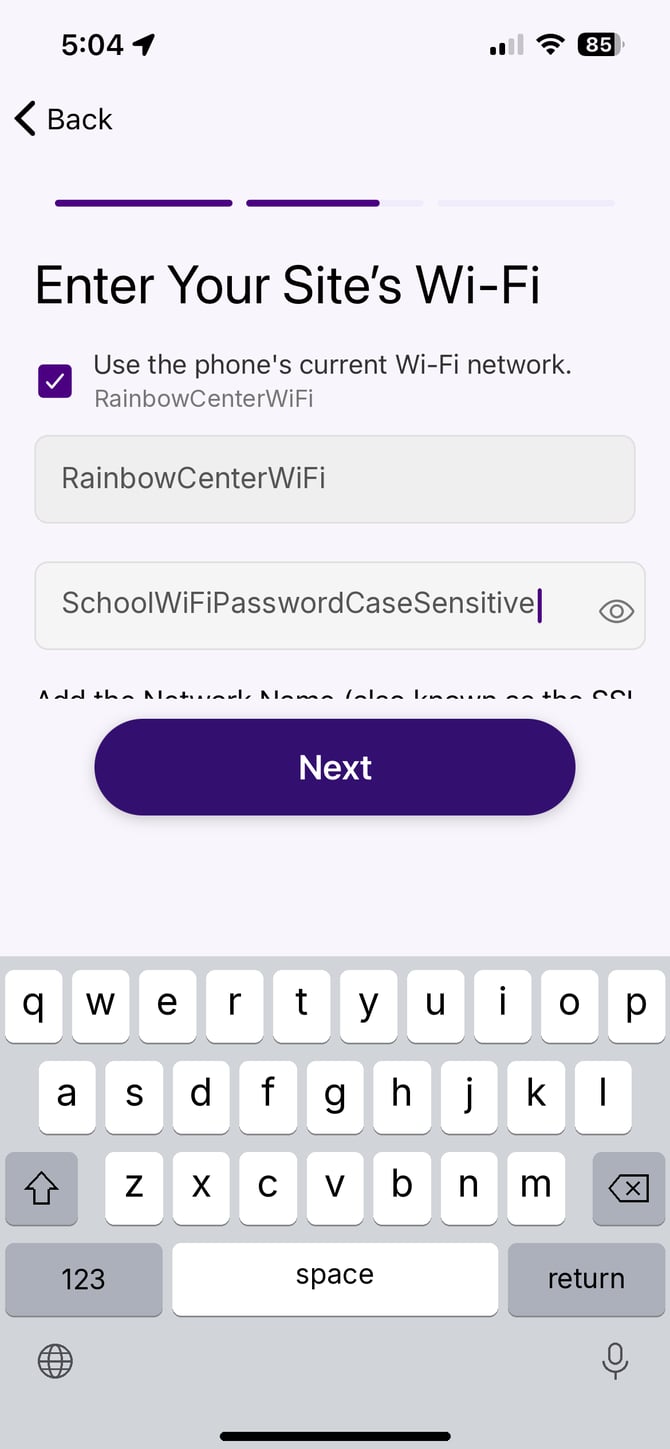
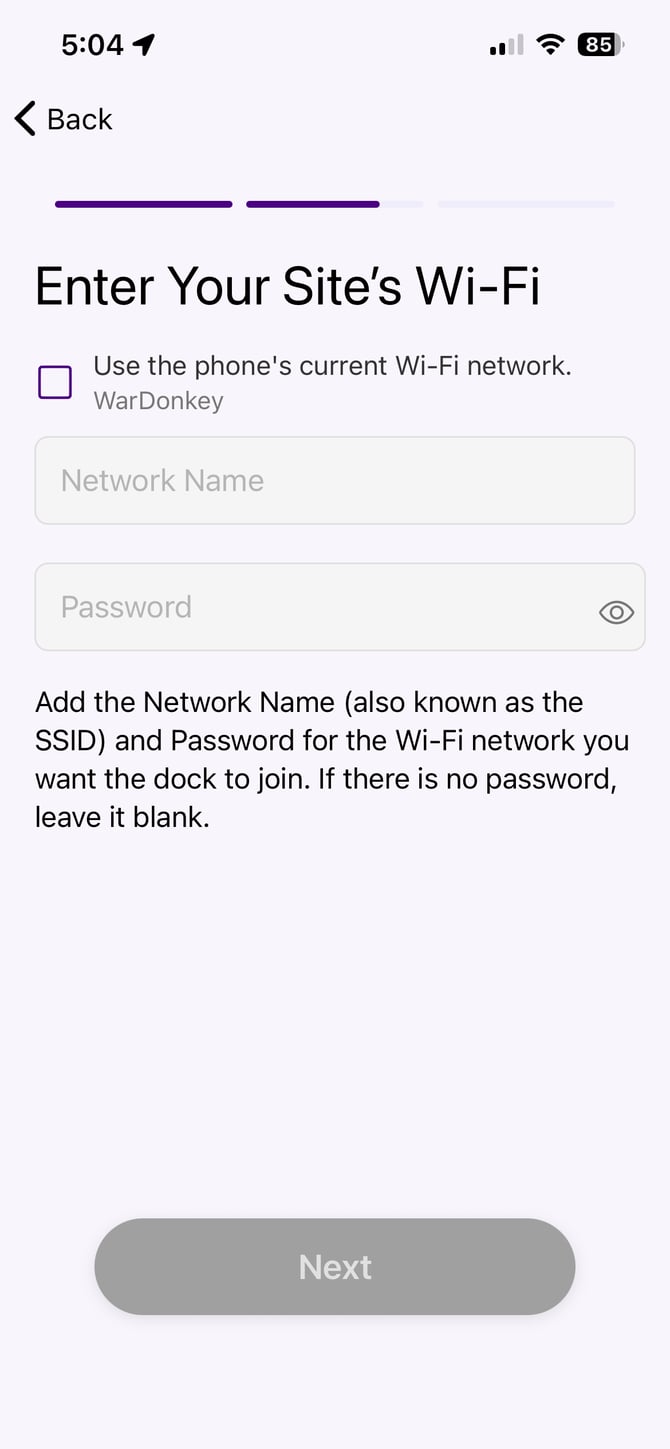
4. Enter your Site's Wi-Fi credentials. ⚠️Network names and passwords are case-sensitive. TYPE CAREFULLY! This is the step where we see the most mistakes. |
5. If the phone or tablet you're using for this step is already connected to your school Wi-Fi, you can automatically fill in the Network Name. This helps prevent typos. You still need to enter the password exactly. |
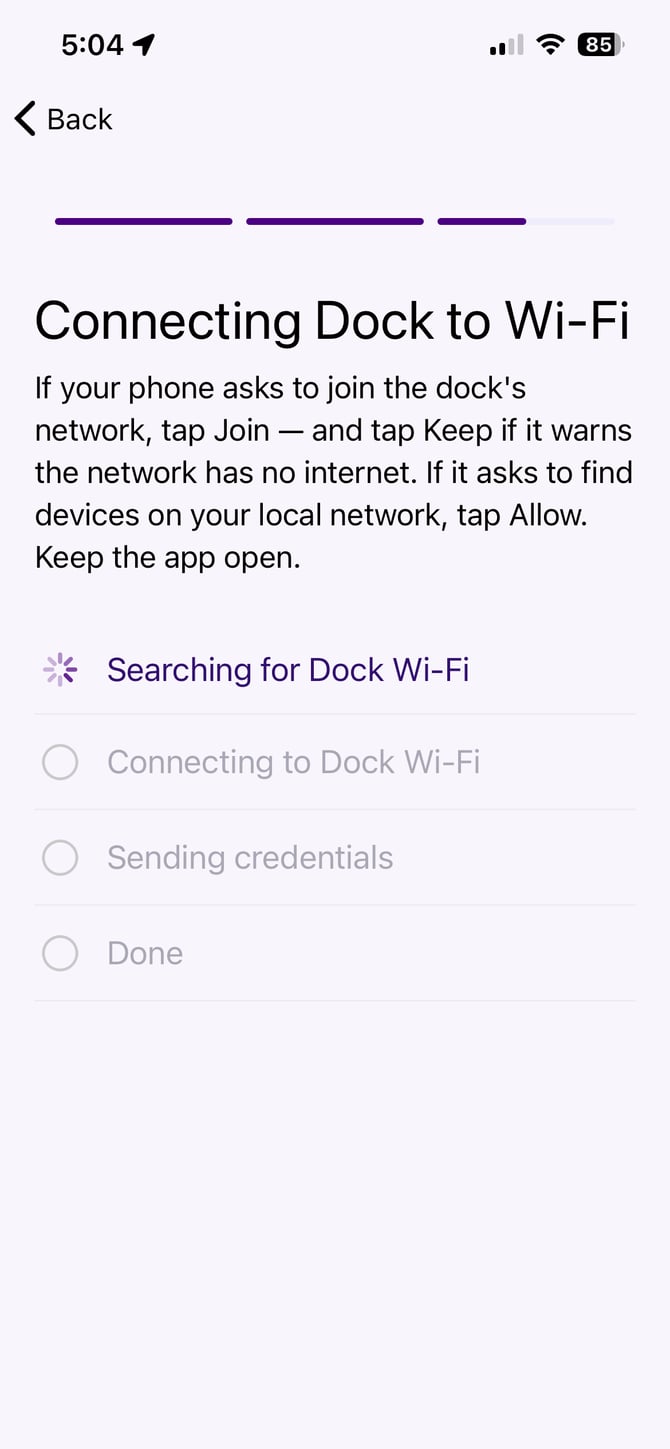
6. Connecting Dock to Wi-Fi. The app will automatically scan for the dock. |
 |
 |
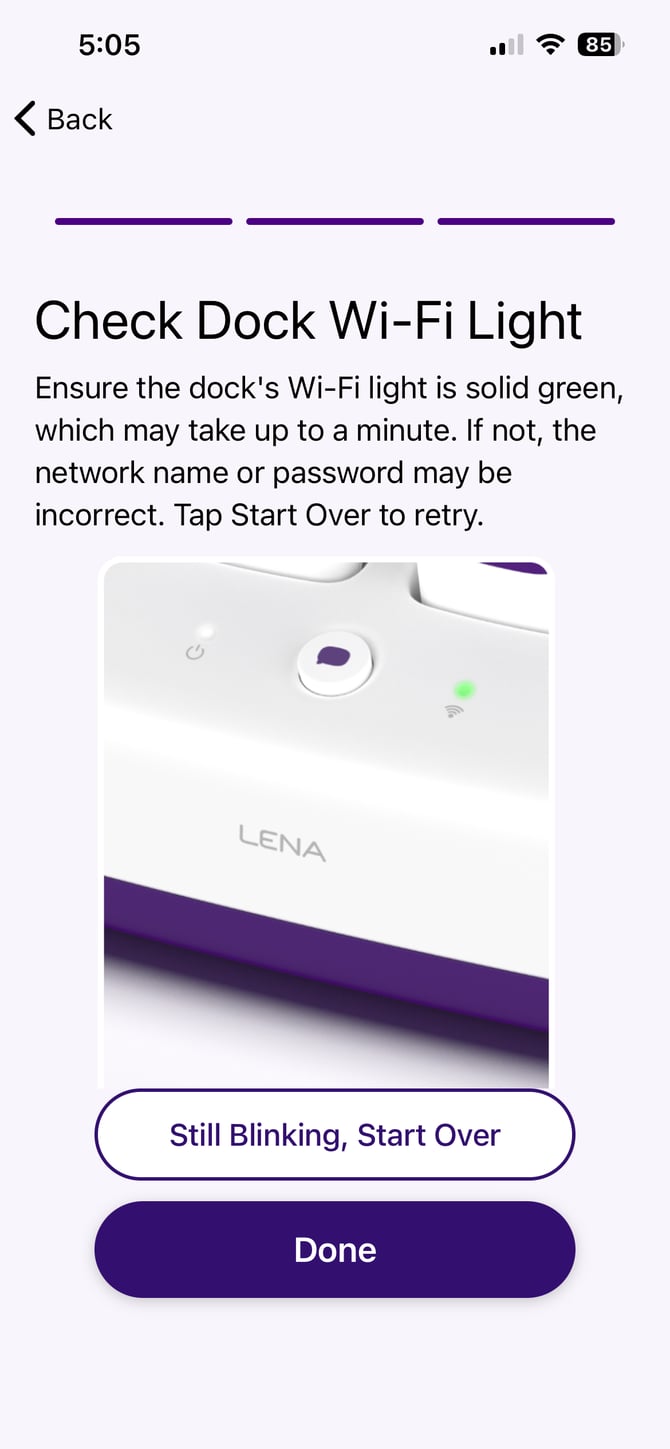 |
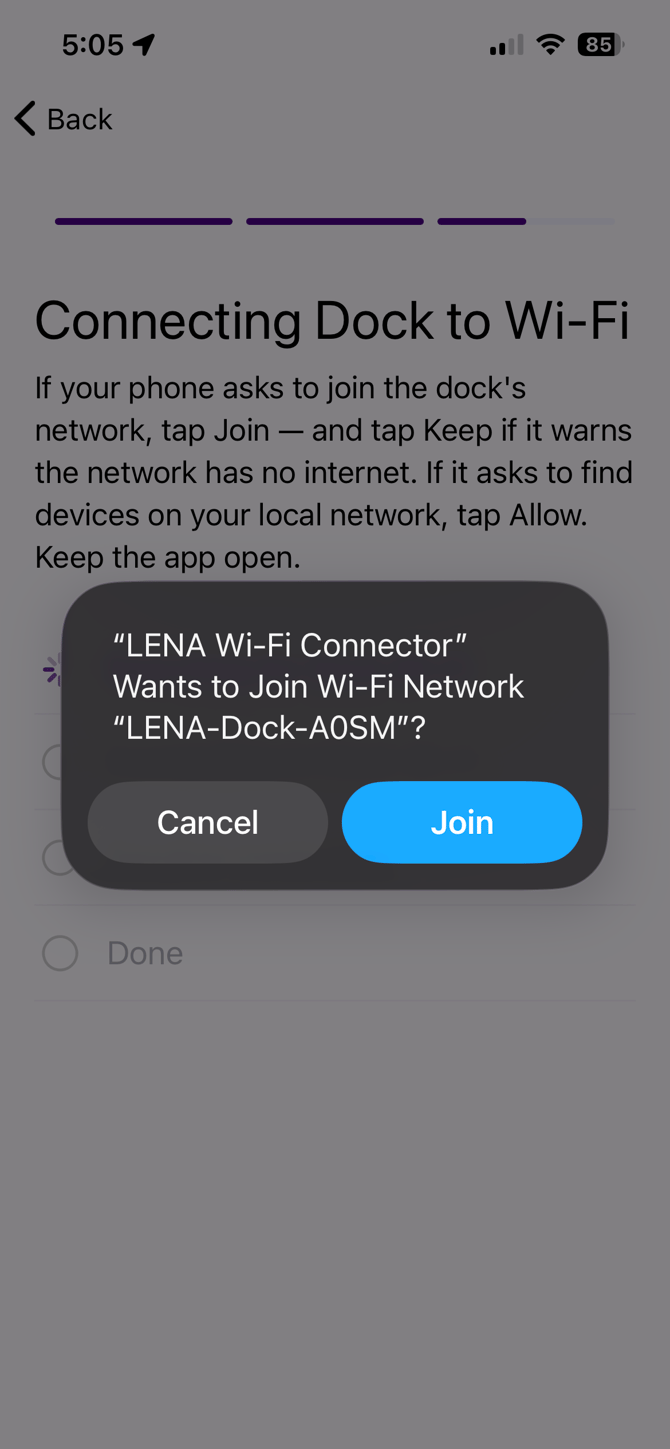
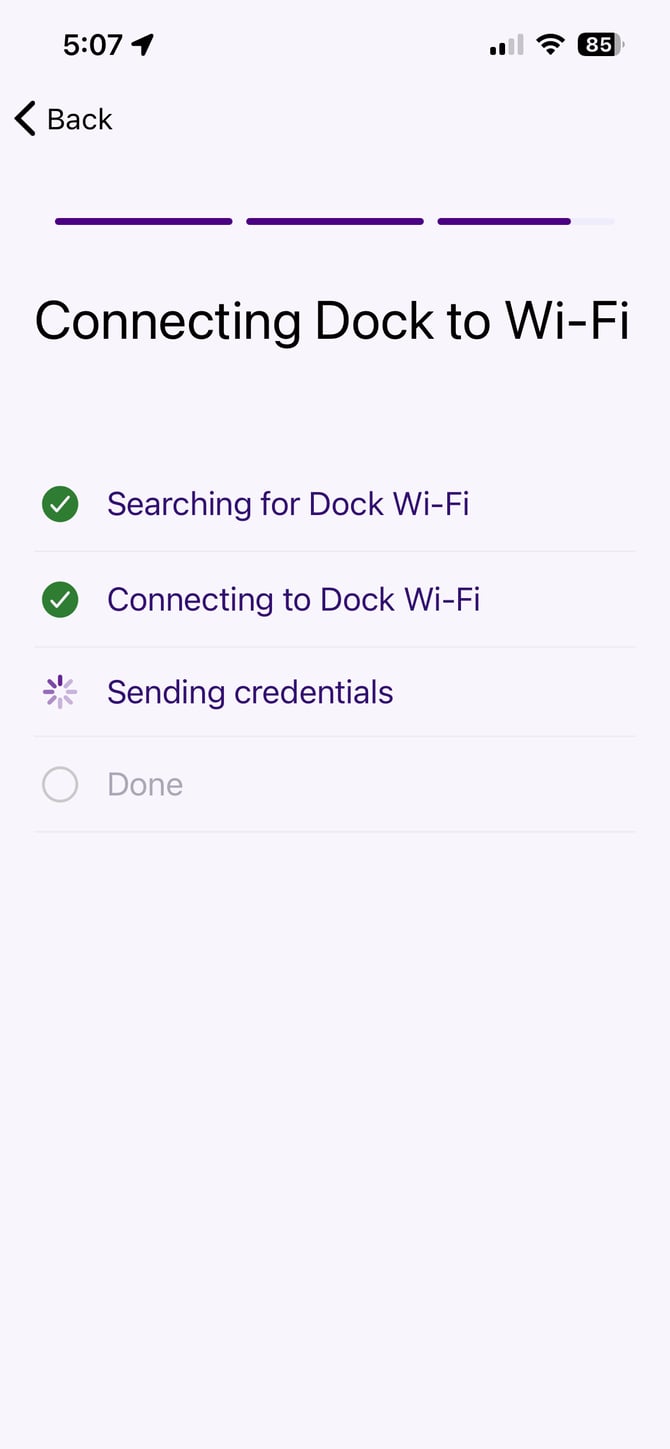
| 7. In some cases you may need to tap "Join" for the first step, telling your phone or tablet it's okay to connect to the dock temporarily. Some phones or tablets will not show this and that's okay! | 8. Connecting Dock to Wi-Fi. The app will automatically scan for the dock, connect to the dock, send the school's Wi-Fi credentials, and then disconnect your phone or tablet. | 9. Check Dock Wi-Fi Light. Ensure the dock's Wi-Fi light is solid green which may take up to a minute. If not, the network name or password is likely incorrect. Tap "Still Blinking, Start Over" to try again. |
👉 If you have multiple docks, complete the pairing instructions once for each dock.
👉 Network names and passwords are case-sensitive. Type carefully.
👉 You will temporarily connect your mobile device to the dock to pass the Wi-Fi details to the dock.
👉 Don't worry, the dock will not use your mobile device's cellular data to upload LENA Days! Your phone or tablet will disconnect from the dock after passing the Wi-Fi details.
Disconnect from Wi-Fi
In some cases you may need to disconnect from your school Wi-Fi to either try to use the cellular network again or to connect it to a different Wi-Fi network.
-
Unpair: Press and hold dock button for 30 seconds to unpair from the current network.
-
Wait: Wait for the dock to boot back up. It will display a blue light several minutes before turning to solid green (connected to cellular) or blinking yellow (offline).
Change to a different Wi-Fi network
-
Disconnect from Wi-Fi, as described above.
-
Connect to the preferred Wi-Fi network via the app, as described above.
Wi-Fi FAQ and Troubleshooting
Can I connect the dock to a hotspot or Mi-Fi device?
Technically yes... but we do not recommend it because:
The dock is pre-equipped with its own cellular modem that finds the strongest signal in your location. A cellular hotspot is unlikely to have a stronger signal.
The dock is pre-equipped for high-speed uploads of large amounts of data...like LENA Days! Your hotspot's mobile data plan may be limited and/or have a high-speed data cap after which data is throttled.
What if the attempt to connect fails?
If the light goes back to blinking yellow, unplug the dock. Wait a few seconds, then plug it back in.
Allow 5 minutes to reboot. When the light changes from blue to green or blinking yellow, try again.
Remember that network names and passwords are case-sensitive.
If I unplug the dock, will I have to repeat these steps to re-connect to Wi-Fi?
No, the dock will remember the Wi-Fi network when it boots up again.
What if the center's internet or Wi-Fi goes out?
The dock will reconnect to the Wi-Fi network when it comes back up, as long as the name and credentials do not change.
What if the Wi-Fi password changes?
The dock will be disconnected from the network. Follow instructions to change to a different Wi-Fi network so that you can enter the new password.