Contents:
Delete a Site
Delete a Group
Remove a Child
Remove a LENA Day
Remove a Site Manager
Remove a Coach
Remove a Teacher
Inactivate a User
Delete a Site
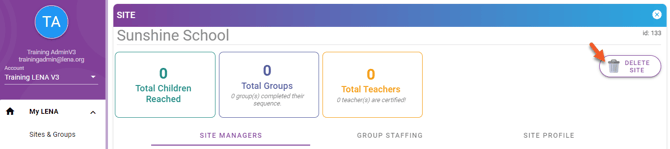
The Account Owner can delete a Site that contains no Groups.
- From the main dashboard, click Manage to open the Site.
- Click Delete Site.
Notes about site deletion:
- A site containing a group cannot be deleted. Delete the groups first.
- Deletion of the only site in an account is not allowed. You can either rename the site or add a second site and then delete the unwanted one.
- Site Managers whose only LENA Online connection was this site will no longer have LENA Online access.
Delete a Group
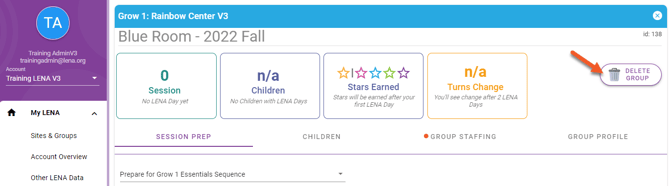
The Account Owner can delete a Group with no associated recordings and no Room Kit request.
- Open the Group.
- Click Delete Group.
Notes about group deletion:
- If a child has contributed a recording to any other Group, the child and his/her data remain in the system.
- If a child has never contributed a recording, the child and all demographic information are deleted. If any such child will participate in a future groups, consider moving them first to reduce data entry.
- If a group has one or more recordings, it should be closed instead of deleted, even if it did not complete the planned number of LENA Days.
- If a group has no recordings but a Room Kit was requested, please alert your LENA Partner Success Manager that you are returning the unused materials. Do not use them for a different group.
- Coaches whose only LENA Online connection was this group will no longer have LENA Online access.
Remove a Child
To remove a child from a Group where he/she has not yet contributed a recording:
- Open the Group.
- Go to the Children tab.
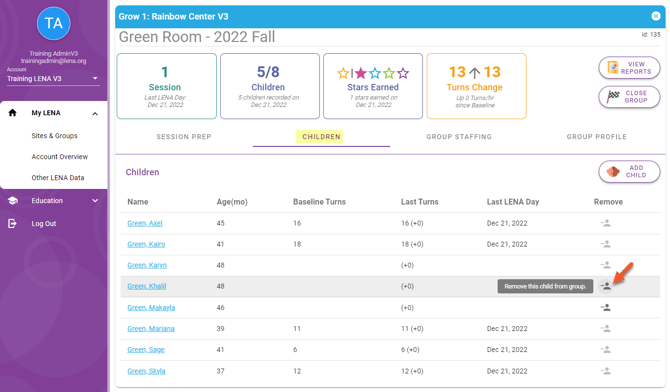
- Click the Remove Child icon.
Notes about child deletion:
- If the child has contributed a recording to any other Group, the child and his/her data remain in the system.
- If a child has never contributed a recording, the child and all demographic information are deleted entirely.
- A child who has contributed data to a group can only be removed from that group in special circumstances. Contact LENA Support if family rescinded consent or child's data does not belong to the group.
⭐Extra credit: You may have noticed that in the illustration above, while Khalil and Makayla are available for removal, Karyn is not...even though she shows no "Last LENA Day." By clicking her name and viewing her recording list, we can find that she has one short recording. It is too short to count, but it prevents her removal. The recording would need to be deleted first.
Remove a LENA Day
To remove a LENA Day, all recordings that are part of that LENA Day must be individually modified. A individual recording can be hidden from reports, moved to the correct report, or in special cases deleted entirely.
Hide a Recording
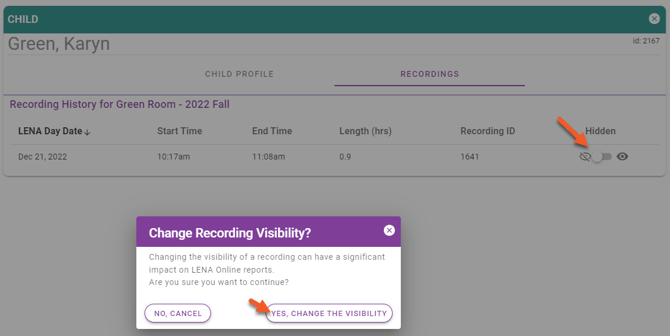
Hide any recording that does belong to the child but does not reflect his/her intended LENA Day for this group. A hidden recording remains in the system and can be added back into reports later if appropriate. To hide, the Account Owner will:
- Open the Group.
- Go to the Children tab.
- Click on the Child.
- Go to the Recordings tab.
- Switch the recordings Hidden toggle to Hidden (gray, line through eye icon).
- Agree to Yes, Change the Visibility. The report will be updated within about 15 minutes.
Move a recording or an entire LENA Day
If one or more children's LENA Days are associated with the wrong group, contact support@lena.org. Provide the site name, group name, date of LENA Day, and child IDs if applicable.
Delete a recording
At our discretion, the LENA support team can delete recordings that are of unknown origin or belong to a child whose family has revoked consent. Contact support@lena.org with the site name, group name, child's ID, and date of recording. Deletion is permanent; it cannot be undone.
Remove a Site Manager
The Account Owner can remove a Site Manager from a Site.
- From the main dashboard, click Manage to open the Site.
- Go to the Site Managers tab.
- Click the Remove Site Manager icon for the user you wish to remove from this site.
The user will no longer be associated to this Site. Any other Group or Site associations remain unchanged.
Remove a Coach
The Account Owner or Site Manager can remove a Coach from a Group.
- Open the Group.
- Go to the Group Staffing tab.
- Click the Remove Coach icon for the user you wish to remove from this group.
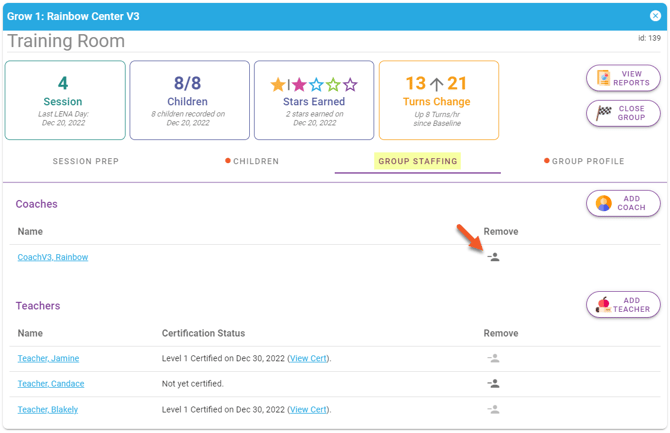
The Coach will no longer be associated to this Group. Any other Group or Site associations remain unchanged.
Remove a Teacher from a Group
To remove a teacher from a Group:
- Open the Group.
- Go to the Group Staffing tab.
- Click the Remove Teacher icon for the teacher you wish to remove from this group.
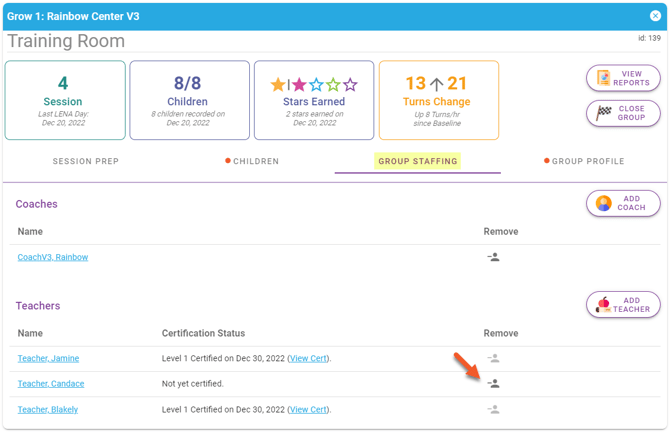
The teacher will no longer be associated to this Group. Any other Group associations remain unchanged.
Note: A Teacher cannot be removed from the group in which he/she was certified. Contact support@lena.org for help in this situation.
Inactivate a User
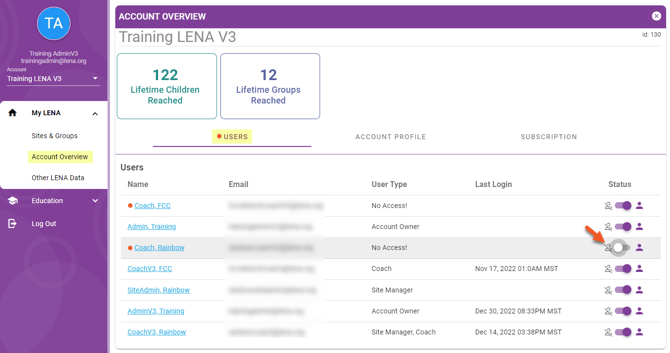
When a person should no longer have any access to LENA Online, the Account Owner inactivates the User. To remove access to only specific Sites or Groups, follow instructions to Remove a Site Manager or Remove a Coach instead.
⚠️ Inactivating a user removes all access to LENA Online, including access to LENA Start or LENA Home programs, and access in other partner organizations.
If the user may be coaching or managing sites for other partner organizations, please contact support@lena.org for assistance. We can disconnect the user from your account instead.
- Open Account Overview.
- Go to Users tab.
- Switch the User's Status toggle to Inactive.